- Peel
- How it works
How Peel works
Everything Peel adds to Finder: open archives like folders, extract from the right-click menu, peek, search inside, and compress with a password.
Open Files. Not Apps.
Archives open in Finder, like folders. No new window to learn: Peel works the way you already do.
Double-click to look inside
Peel opens the archive as a folder in the same Finder window. Browse it, open files, drag out just the ones you need.

Extract from the right-click menu
Peel extracts next to the archive, Peel to… asks where, and Peel & Reveal shows you the result in Finder.


 Peel
Press Space to peek first
Quick Look lists what an archive holds, with sizes, before you open or extract anything.

Encrypted? Peel asks once
Password-protected ZIP, 7z and RAR archives ask for the password once, then extract like any other. Peel can remember it in your Keychain.
Spotlight searches inside archives
Search for a file's name and Spotlight finds the tar, 7z or RAR archive it's packed in, without unpacking anything first.
Compress with a password
Select files, right-click and choose Compress with Password…. Peel makes an AES-256 ZIP that 7-Zip, WinZip and Keka open too.
From The Pith
Read more
What sits inside an archive, and why opening one needn't mean extracting it.
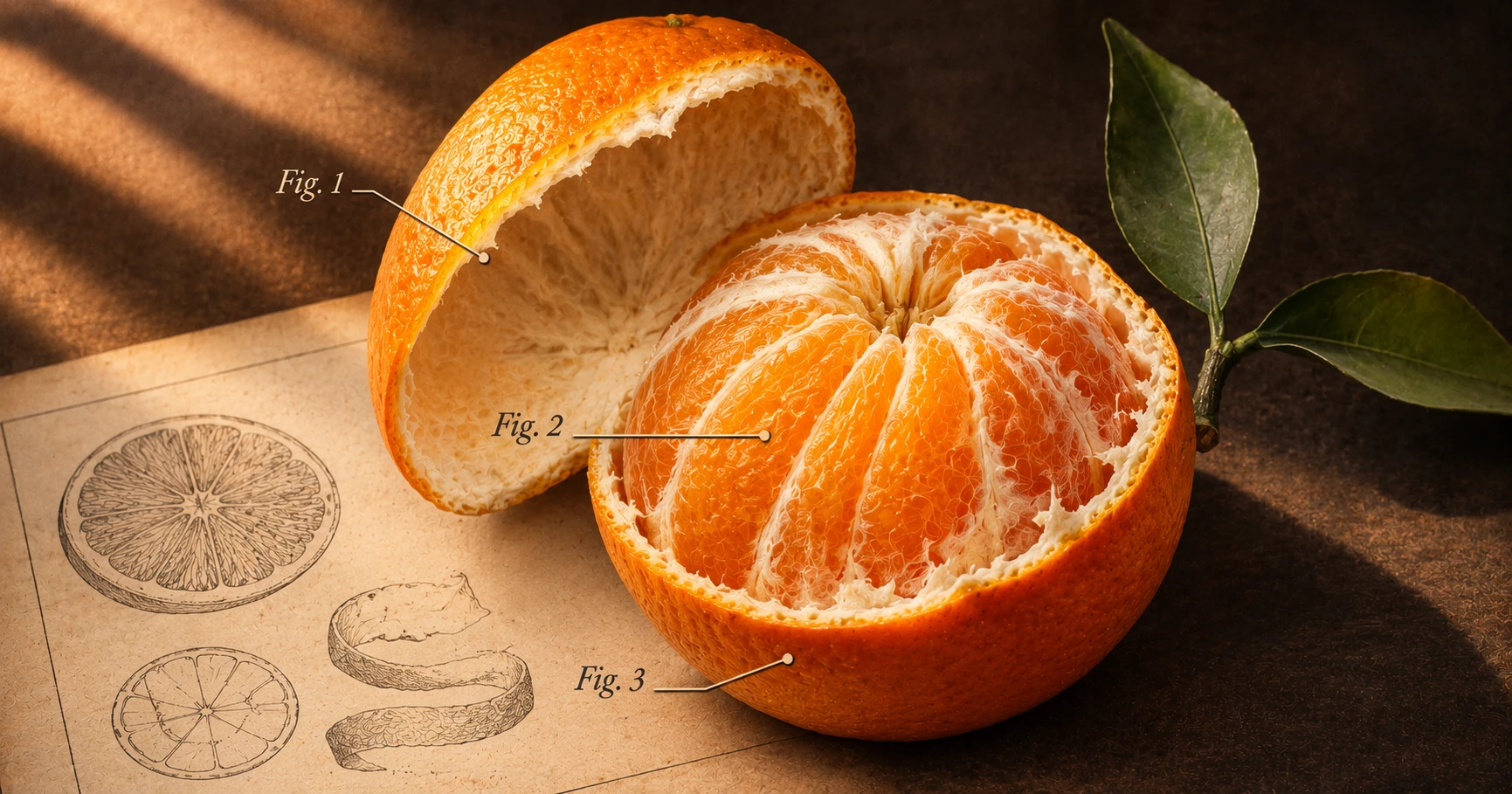 Essay · EngineeringAnatomy of an Archive
 Essay · DesignWhy Are We Still Extracting Archives?

Get Peel. Free forever.
No account, no ads, no trial. Everything Peel does today stays free, and it keeps itself up to date.
brew install --cask snackstudio/tap/peel
- Requirements
- macOS 13 Ventura or later, on Apple silicon or Intel.
- Install
- Open the installer and follow it. Or open the disk image and drag Peel to Applications, or run
brew install --cask snackstudio/tap/peelin Terminal. - Updates
- Peel updates itself, and every update is signed. To check now, choose Peel ▸ Check for Updates…
- Uninstall
- Drag Peel to the Trash, or run
brew uninstall --cask peel. - Price
- Free. No account, no ads, no trial.
- Privacy
- Your files never leave your Mac, and the app has no analytics. This site counts visits to learn what helps; the privacy policy says how.